

Docs ComplyPress — Cookie Notice & Policy Banner for WordPress
Notice behavior
These controls decide whether the notice shows, how long this browser remembers an accept click, and how to show the notice again after visitors have already accepted it.
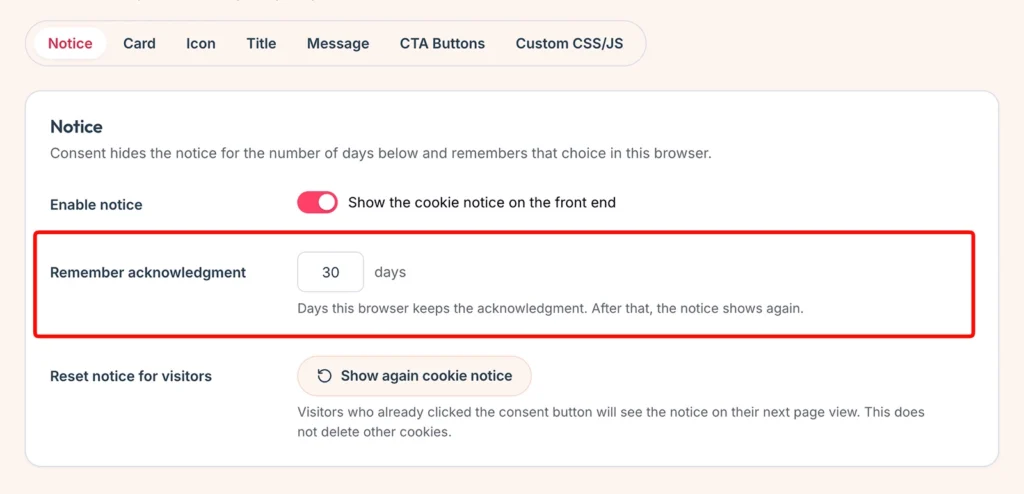
Open the panel
- Go to Settings → ComplyPress → Customization.
- Open the Notice panel.
Enable notice
Turn Enable notice on to show the banner on the public site. Turn it off to hide the banner everywhere. The notice also stays hidden when the message is empty, and on admin, login, feeds, embeds, AJAX, and JSON requests.
Remember acknowledgment
- Set Remember acknowledgment to a number of days from 1 to 365. The default is 30.
- When a visitor clicks the accept button, the browser stores that choice until the days run out.
- After that, the notice shows again in that browser.
- Another browser, another device, or cleared site data shows the notice again immediately.
PHP does not read that stored choice on each page load, so cached pages work the same for everyone. The browser script shows or hides the notice.
Show the notice again
- Click Show again cookie notice.
- Confirm the prompt.
- Visitors who already accepted an older version see the banner on their next visit.
This bumps a revision number. It does not delete other cookies or other browser storage.
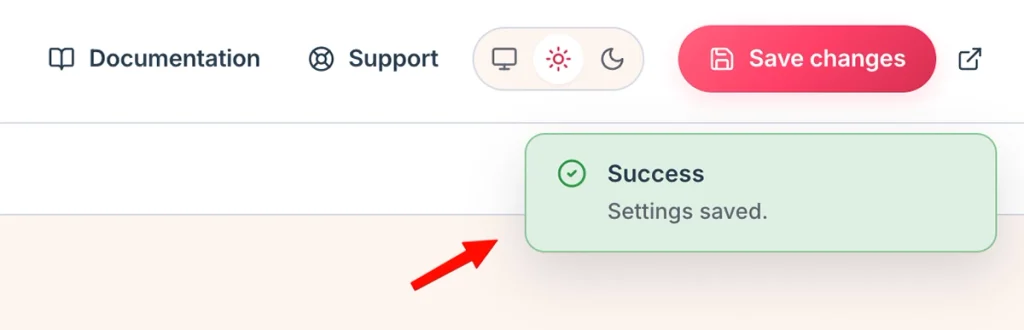
Click Save changes after you change the toggle or the number of days.
Next: the Card.
Still have questions?
Send us a message from the contact page and we will reply by email.