



Your cookie notice is part of your visitors’ first impression. It should explain your cookie use clearly, make your policy easy to find, and feel like part of your WordPress site.
ComplyPress helps you create a lightweight, customizable notice that matches your brand. In this article, you’ll learn what to include in your message, which privacy considerations matter, and how to get started.
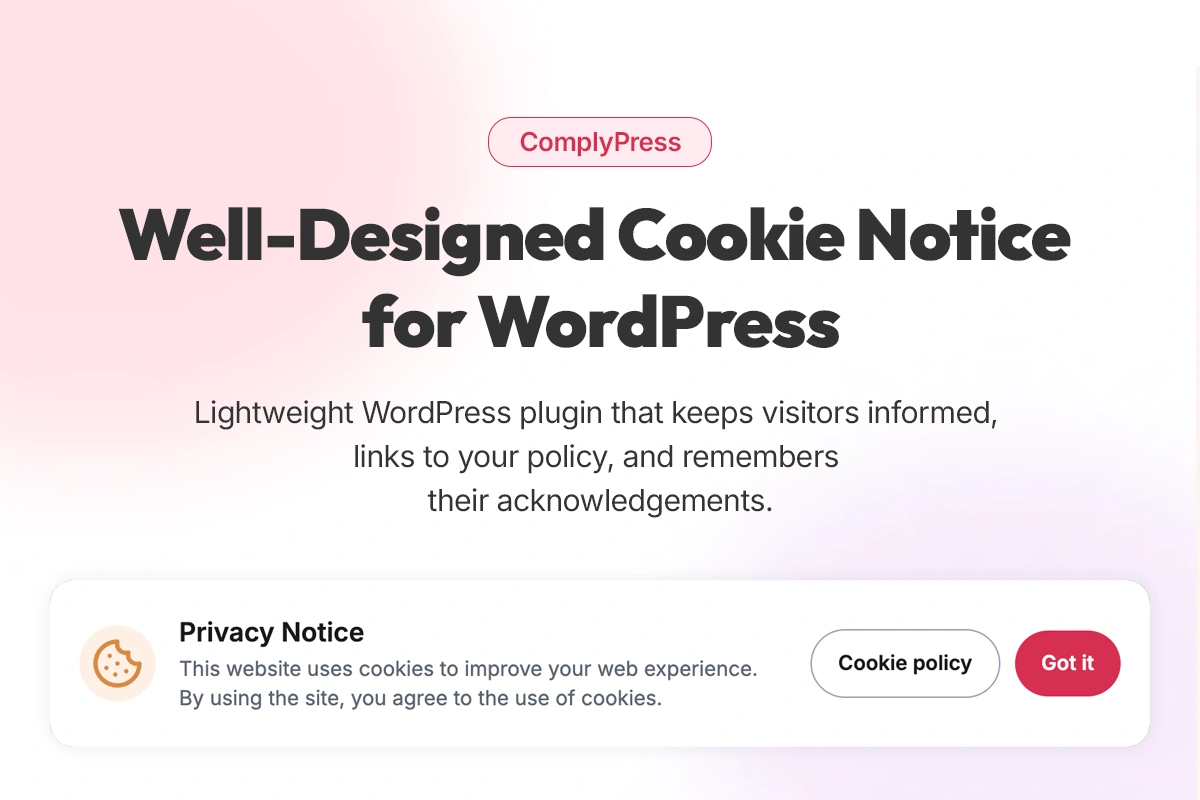
What is a cookie notice?
A cookie notice is a short message that tells visitors your website uses cookies and links to your cookie or privacy policy. It typically appears as a banner or compact panel with an action to acknowledge or dismiss the message.

Cookies are small pieces of data stored in a visitor’s browser. They can support features such as signing in and keeping items in a shopping cart, as well as preferences, analytics, and advertising. Their purpose determines which privacy requirements apply.
A useful notice helps visitors understand three things:
- What your site uses cookies for: Explain the purpose in plain language.
- Where to find the details: Include a clearly labeled policy link.
- What the button does: Use wording that accurately describes the action.
Keep the message short and leave the detailed explanation for your policy page. Choose readable text, accessible colors, and a layout that works comfortably on mobile.
With ComplyPress, you can bring that message into your site’s design and remember a visitor’s acknowledgement so the notice does not reappear on every page.
Why cookie notice design matters
Your notice deserves the same attention as the rest of your website. Clear wording and thoughtful placement help visitors understand the message while keeping your content easy to use.
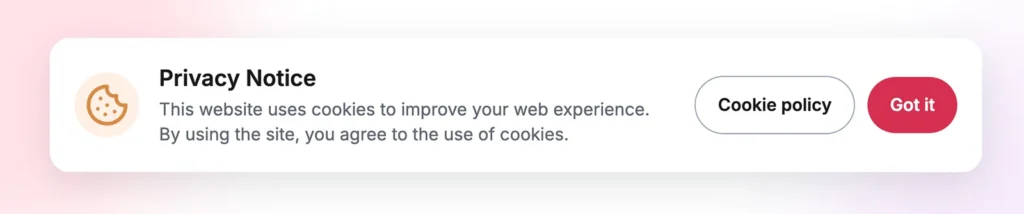
Focus on four practical goals:
- Clear communication: Explain your cookie use with specific, understandable wording.
- Consistent branding: Match the notice to your site’s colors and visual style.
- Comfortable browsing: Keep text, buttons, and policy links easy to use on desktop and mobile.
- Lightweight delivery: Check that the notice loads smoothly and avoids unexpected changes to the page layout.
For SEO, focus on keeping your content accessible. Google recommends compact banners over intrusive overlays, while making exceptions for legally required interstitials. A cookie notice should support a usable page experience.
ComplyPress gives you a straightforward way to create a branded cookie notice for WordPress. Start with a clear message, customize its appearance, and link visitors to a policy that reflects your site’s actual cookie use.
Set up a branded cookie notice in minutes with ComplyPress — a lightweight WordPress plugin that keeps visitors informed, links to your policy, and remembers their acknowledgements.
GDPR and cookie consent: what your notice needs to communicate
Cookie notices and consent controls serve related purposes. Your notice explains your cookie use; consent controls determine whether cookies that require permission can run.
In the EU, cookie requirements come primarily from national laws implementing the ePrivacy Directive, while GDPR also applies when personal data is processed. In the UK, PECR governs cookie use alongside the UK GDPR.
Strictly necessary cookies, such as those needed for a requested login or shopping cart, can qualify for consent exemptions. Where cookies require consent, they must wait until visitors give it, and visitors need a way to withdraw that consent.
Before publishing your notice:
- Review your cookie use. Check your plugins, embedded content, analytics, and advertising tools.
- Write an accurate message. Describe what your site actually does.
- Link to an up-to-date policy. Explain cookie purposes and relevant durations.
- Check consent requirements. Where consent is needed, provide controls to accept, reject, and later change the choice.
- Test the behavior. Confirm that cookies requiring consent stay inactive until permission is given.
ComplyPress focuses on displaying a clear, customizable cookie notice. Remembering that someone acknowledged the message is different from obtaining permission for optional tracking. Where prior consent is required, your site also needs controls that enforce those choices.
ComplyPress is a lightweight cookie notice: it helps you communicate and record a visitor’s accept choice in the browser. It is not a full consent management platform (CMP) and does not block third-party scripts by category. Pair it with honest policies and the right tools for your jurisdiction.

Cookie notice or consent management: which does your site need?
Start with what your website does and which cookies it uses. A blog with advertising and embedded tools may need more consent controls than a larger site that uses only essential cookies.
A cookie notice explains your cookie use and directs visitors to your policy. A consent management platform (CMP) helps collect and manage visitors’ choices, often with features such as script blocking, cookie categories, and scanning.
| Your goal | What to look for |
|---|---|
| Display a branded message with a policy link | A customizable cookie notice |
| Remember that a visitor acknowledged the message | A notice with configurable acknowledgement storage |
| Keep cookies inactive until permission is given | Consent controls with script blocking |
| Let visitors manage cookie categories | A consent management solution |
ComplyPress fits sites that need an informational notice and have already addressed any consent requirements. Where cookies require prior consent, those cookies must remain inactive until permission is given.
Explore the feature overview to see how ComplyPress fits your wordpress site.
How to add a cookie notice to WordPress
Follow these steps to create your notice, match it to your site, and check the visitor experience.
1. Prepare your policy page
Publish a Cookie Policy or Privacy Policy that explains your site’s actual cookie use. Make it easy to find by linking to it from your footer and your notice.
Review the policy whenever you add or change analytics, advertising, forms, or embedded services.
2. Install and activate ComplyPress
Upload and activate ComplyPress through WordPress, then open its settings to begin configuring your notice.
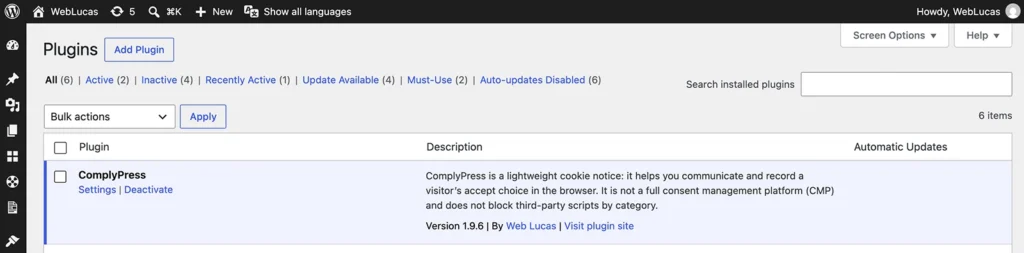
Follow the installation guide for the complete process.
3. Add your message, button labels, and policy link
Write a short message that accurately explains your cookie use. Add your policy URL and choose button labels that describe what happens when visitors click.
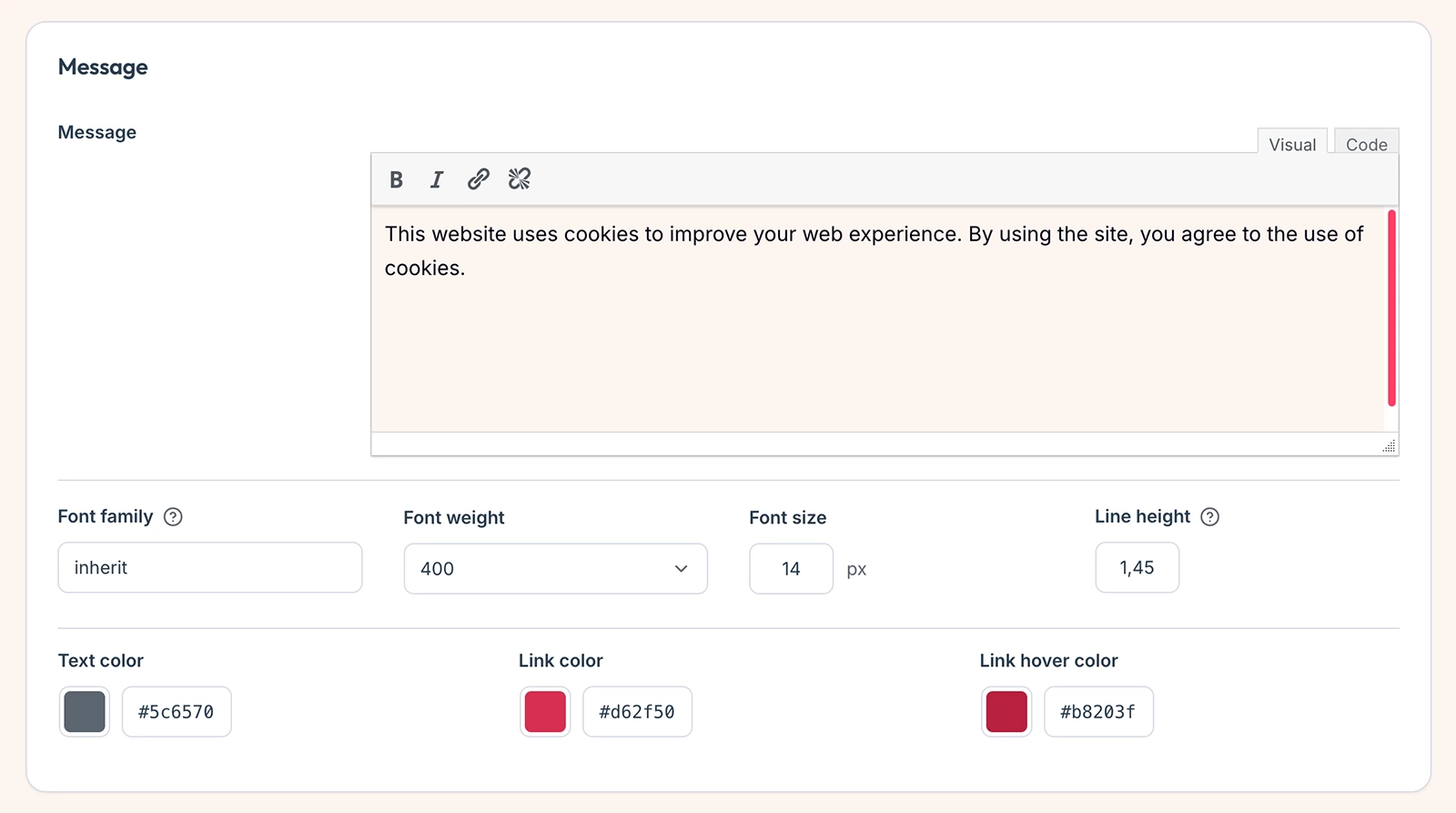
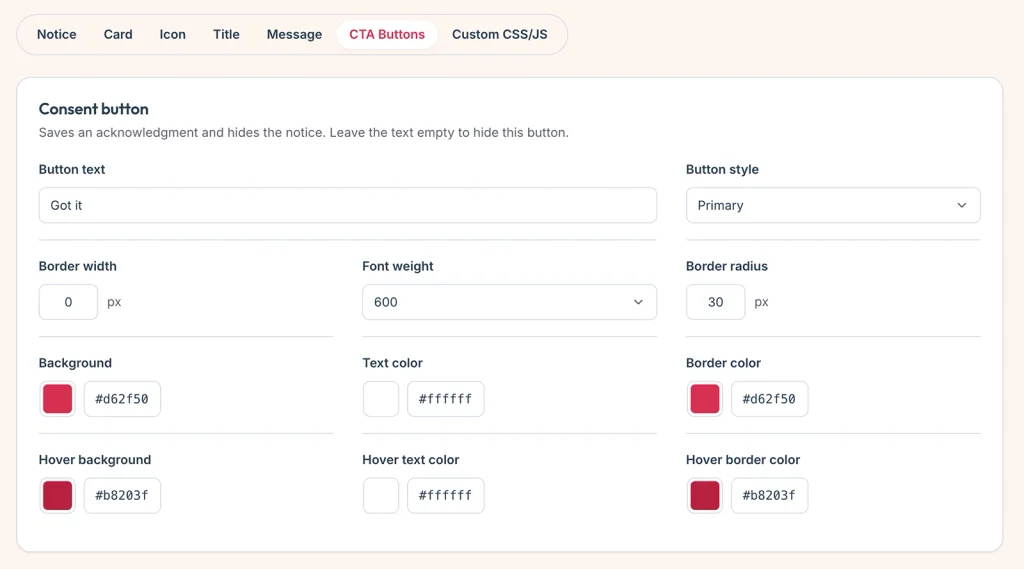
For an informational notice, “Got it” clearly communicates acknowledgement.
ComplyPress lets you style the acknowledgement and policy buttons separately. Adjust their fill, outline, corners, and font weight to fit your site’s design.
4. Adjust the layout for desktop and mobile
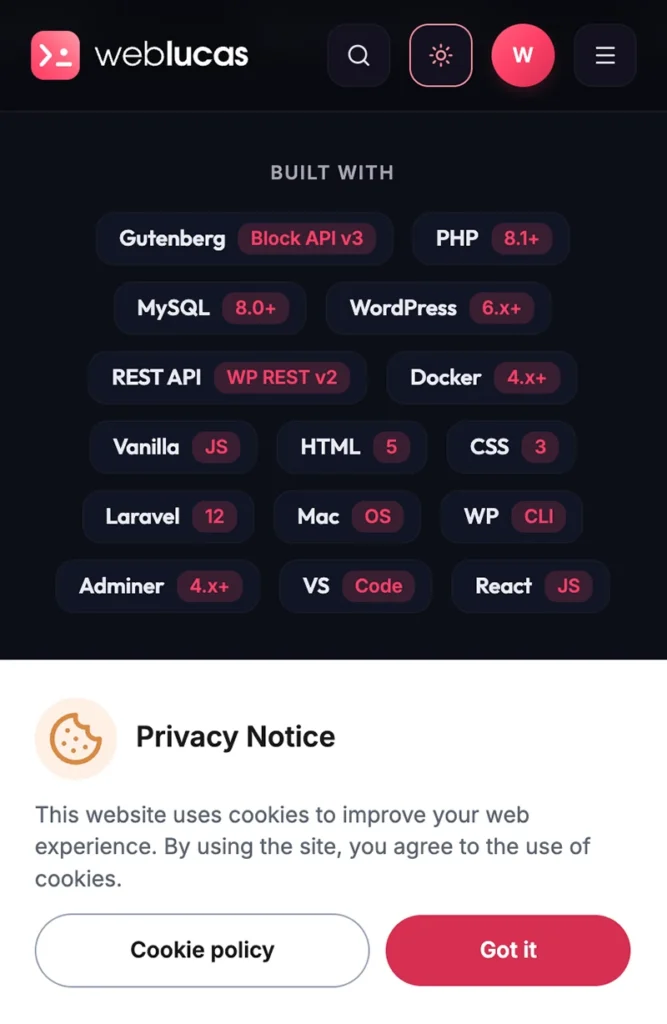
Check the notice at different screen sizes. Your message should remain readable, buttons should be easy to tap, and the card should leave important navigation accessible.
Use ComplyPress’s separate desktop and mobile spacing controls, together with the card’s maximum width, to refine the layout.
See the configuration guide for details about each setting.
5. Choose how long to remember acknowledgements
Set the number of days ComplyPress should remember that a visitor acknowledged your notice. This helps returning visitors browse without seeing the same message on every page.
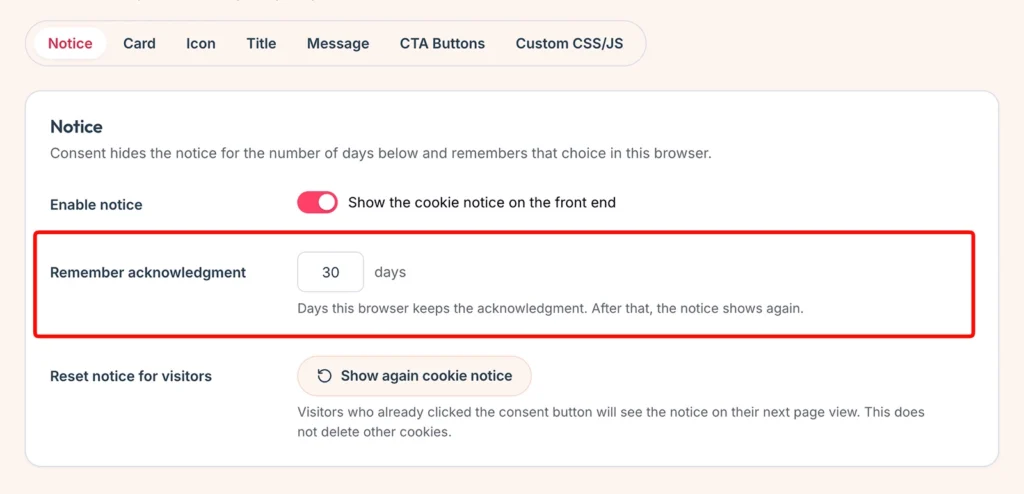
After significant changes to your message or cookie use, review whether returning visitors should see an updated notice and test the behavior.
6. Test the complete experience
Open your site in a fresh private browsing session and check that:
- The notice appears with your chosen message and styling.
- The acknowledgement button dismisses it.
- Reloading the page respects the saved acknowledgement.
- The policy link opens the correct page without recording acknowledgement.
- The notice works comfortably on desktop and mobile.
Clear site data to repeat the first-visit test. If your site uses separate consent controls, also verify that they govern the relevant cookies correctly.
Design a cookie notice that fits your brand
Treat your notice as part of your website’s interface. Aim for a clear message, comfortable reading, and an obvious next action.

- Make text easy to read. Choose a suitable font size and line height, then check contrast against your background.
- Use clear button labels. For an informational notice, pair an acknowledgement such as “Got it” with a descriptive “Cookie Policy” link.
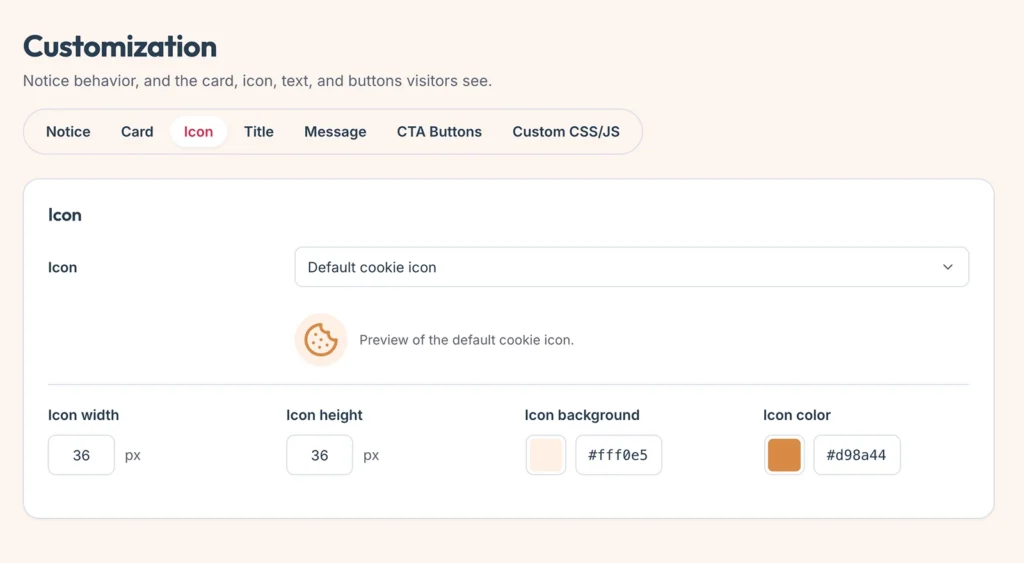
- Keep the icon simple. Use the default cookie icon or upload one that suits your brand.
- Choose a practical position. Check that the notice works alongside sticky navigation, chat widgets, and other floating elements.
- Refine details when needed. Use custom CSS for additional styling and optional JavaScript for advanced behavior.
ComplyPress brings these presentation controls into its settings, so you can adjust the standard design without editing your theme files.
Create a consistent notice across languages
Your cookie notice should feel as familiar as the rest of your translated website.
ComplyPress supports translating visitor-facing strings through WPML and Polylang. Translate your message, title, and button labels, then check the notice in each language.
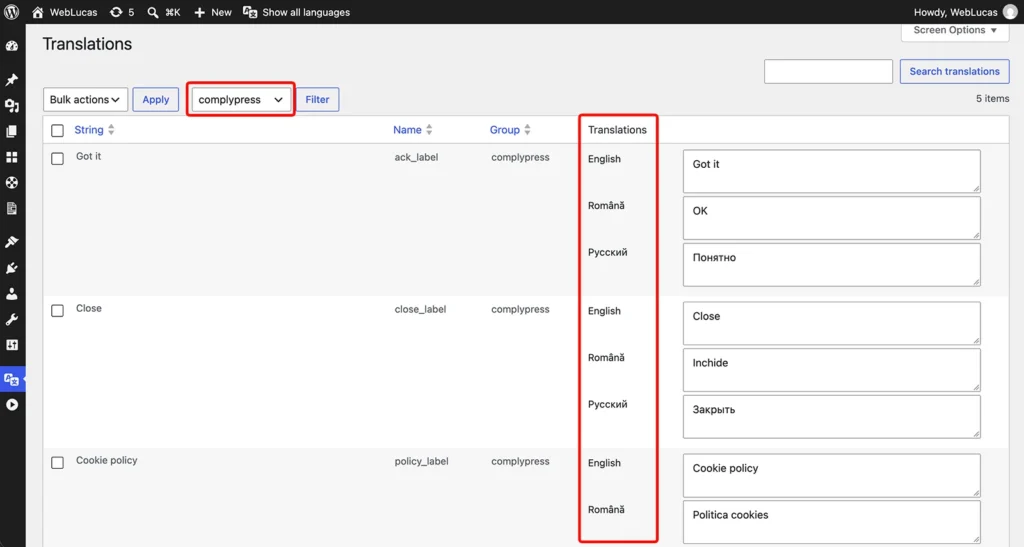

Review the policy links too. Visitors should reach the appropriate policy version, and translated pages should describe the same current cookie practices.
Common mistakes to avoid
A few checks can make your notice clearer and easier to maintain:
- Misleading button labels: Make sure the wording describes the action. Acknowledging a notice and granting permission for tracking are different actions.
- Outdated policies: Review your policy after adding or changing tools that use cookies.
- Untested tracking: Check when analytics, advertising, and embedded tools load, alongside any separate consent controls.
- Mobile overlap: Look for clipped text, small buttons, and conflicts with navigation or chat widgets.
- Duplicate notices: Check your theme and other plugins so visitors receive one consistent message.
Why we built ComplyPress
We built ComplyPress to make adding a well-designed cookie notice to WordPress straightforward.
The goal was simple: give site owners control over the message, card, icon, buttons, and responsive spacing through an approachable settings screen.
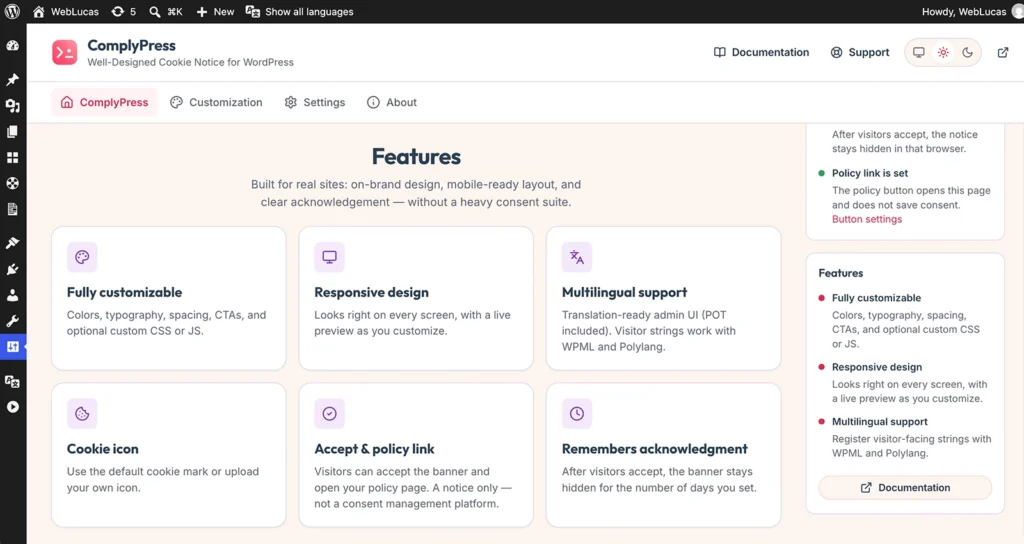
ComplyPress brings together:
- Flexible styling: Customize colors, typography, spacing, and button appearance.
- Responsive controls: Adjust desktop and mobile layouts separately.
- Remembered acknowledgements: Choose how long the notice stays dismissed.
- Independent policy links: Let visitors read more without acknowledging the message.
- Multilingual support: Translate visitor-facing text with WPML or Polylang.
- Advanced customization: Extend the presentation and behavior with custom CSS and JavaScript.
Take a look at the getting started guide, then configure ComplyPress on your staging site to see how it fits your design.
FAQ
Frequently Asked Questions
Do I need a cookie notice if I only use WordPress login cookies?
Cookies strictly necessary to provide a login service requested by the visitor can qualify for a consent exemption. Explain your cookie use in your policy, and review your whole site before deciding which controls you need. Other plugins and embedded services may introduce cookies with different requirements.
Will ComplyPress slow down my site?
ComplyPress is designed as a lightweight cookie notice plugin. To check its effect on your particular site, compare page performance before and after activation using the same test conditions.
Can ComplyPress block cookies until visitors accept?
ComplyPress displays an informational notice and remembers acknowledgements. It does not block third-party scripts or manage cookie categories.
If your site requires those controls, use a consent management solution or a separately implemented and tested consent setup.
Does opening the policy link dismiss the notice?
Opening the policy link does not save an acknowledgement. Visitors can read your policy before deciding whether to acknowledge the message.
How do I update the notice after a redesign?
Open ComplyPress settings, adjust the colors, typography, and spacing, and review the result in the preview. Then check it on your site at desktop and mobile sizes.
The configuration guide explains the available controls.
Create your WordPress cookie notice with ComplyPress
Bring your cookie message into your site’s design with clear wording, a useful policy link, and a layout that works across devices.
To get started:
- Review your cookie use and any consent requirements.
- Prepare or update your policy page.
- Install ComplyPress and customize your notice.
- Test the experience before publishing it.
Set up a branded cookie notice in minutes with ComplyPress — a lightweight WordPress plugin that keeps visitors informed, links to your policy, and remembers their acknowledgements.
Ready to create your notice? Explore ComplyPress to review its features and requirements, or follow the getting started guide if you already have a license.